
Ad Image Size Facebook: Complete Specs by Placement
Get the right ad image size Facebook specs for Feed, Stories, Reels, and more. Includes ratios, pixel dimensions, formats, and quick troubleshooting.

You exported a clean square image, checked the pixels twice, and uploaded it to Ads Manager. Then the preview loaded. Your headline was clipped in Stories, your product edge disappeared in Feed, and the call to action sat under an interface button in Reels. The file wasn’t wrong. It was right for one placement and wrong for the others, and that’s the problem most Ad Image Size Facebook guides never solve.
Table of Contents
- Why Facebook Ad Image Size Is a Production System, Not a Single Number
- The Three Ratios That Anchor Every Facebook Ad Image
- Facebook Feed Single-Image Specs
- Stories, Reels, and Full-Screen Vertical Placements
- Marketplace, Right Column, and the 1.91 - 1 Legacy Wide Format
- Choosing Between 1 - 1, 4 - 5, and 9 - 16 for Your Campaign
- File Formats, File Size, and Technical Constraints
- Size Does Not Predict Performance
- A Placement-Aware Production Workflow
- Quick Fixes for Common Upload and Review Issues
- Facebook Ad Image Size Cheat Sheet
Why Facebook Ad Image Size Is a Production System, Not a Single Number
Most buyers learn this the hard way. You upload a technically correct image, Meta accepts it, and then silent cropping ruins the creative in a placement you didn’t preview. Nothing gets rejected. The ad just runs badly composed.
The fix is to stop asking for one universal Ad Image Size Facebook canvas. The foundational principle is to design for the placement rather than rely on one size, as set out in Meta ad specs guidance on placement-based sizing. Feed, Stories, Reels, and Marketplace don’t share the same shape, screen share, or interface furniture. One file can’t be optimal for all of them.
The Variant Matrix Mindset
Ship a small set of variants instead of one master export:
- 4:5 for Feed: Your feed-first default, built to take more vertical space on mobile.
- 9:16 for Stories and Reels: Your full-screen version, composed around interface overlays.
- 1:1 for square surfaces: Your portable fallback for Marketplace and other square placements.
A compliant image isn’t necessarily a legible one. Acceptance in Ads Manager only means Meta can serve the file, not that your price, logo, or product claim survives the crop.
That distinction matters more as automated distribution spreads creative across surfaces you didn’t manually pick. If you don’t control the variant, Meta controls the crop. A placement-aware system, with named variants and pre-launch checks, prevents the most common rendering failures before spend starts, not after a client screenshots a broken ad.
The Three Ratios That Anchor Every Facebook Ad Image
Every Facebook image ad you’ll ship maps back to three reference ratios. Learn these and placement-specific decisions get much simpler.
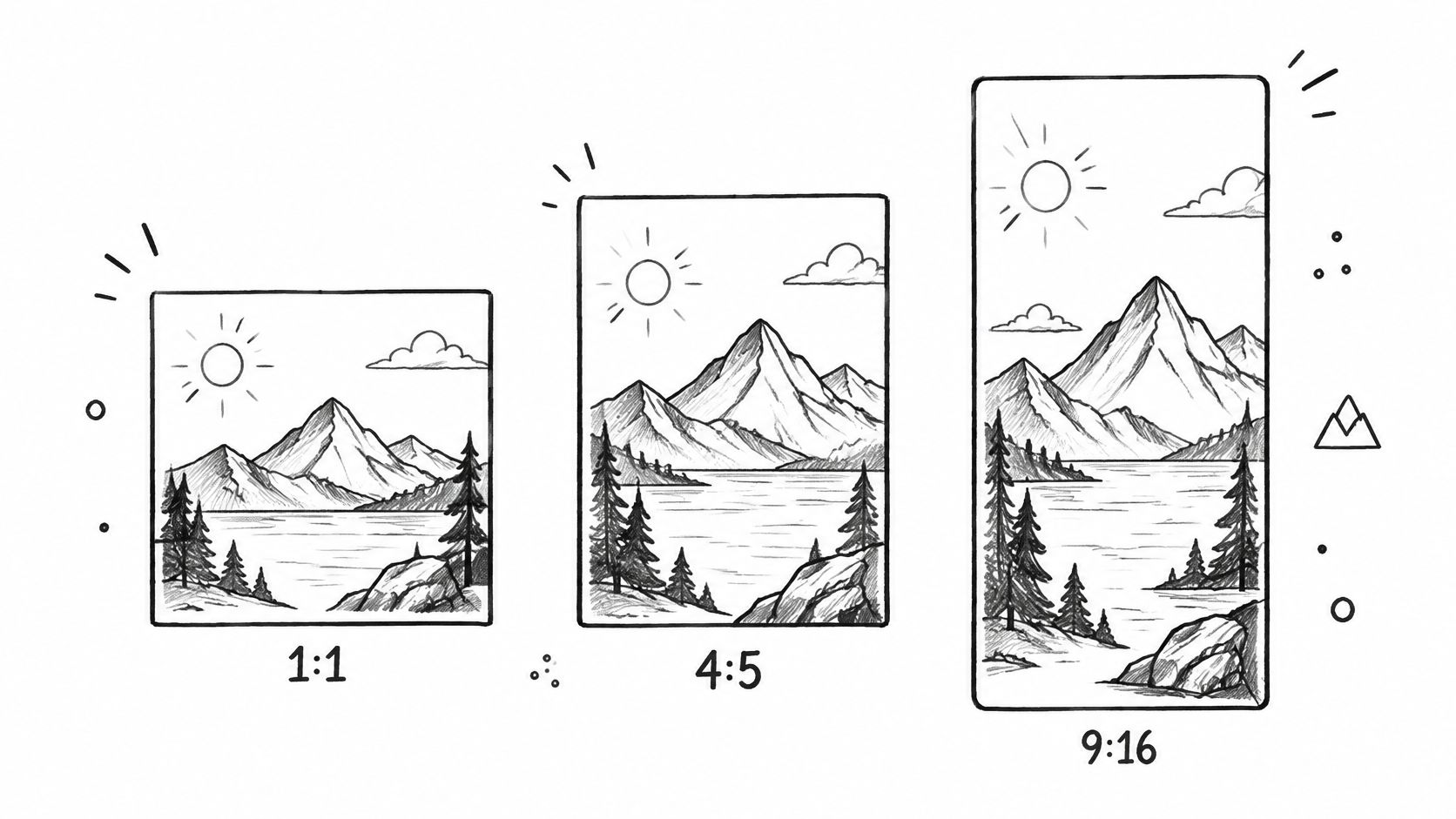
1:1 square is the broadly compatible default, commonly produced at 1080 × 1080 pixels. It travels across more placements than any other shape, which is why teams under time pressure reach for it first. It’s rarely the best option anywhere, but it’s seldom a disaster anywhere either.
Why 4:5 Earns Its Place
4:5 vertical, at 1080 × 1350 or 1440 × 1800 pixels, is the feed-first standard. Because its height is 1.25 times its width, it gives you 25% more vertical image area than a square at the same width. On a phone, that extra height is real estate your competitor’s square ad doesn’t occupy. Your product sits larger, your text breathes, and the scroll takes longer to move past you.
9:16 vertical, at 1080 × 1920 or 1440 × 2560 pixels, is the full-screen canvas for Stories and Reels. It’s designed for a portrait screen, not adapted from one. Treating it as a stretched Feed asset is where most safe-zone failures start.
There’s also a fourth shape worth knowing. The 1.91:1 format, commonly 1200 × 628 pixels, is the legacy link-ad ratio. It’s no longer the default, but it hasn’t disappeared.
If you’re building templates across networks, it helps to find the right image sizes per channel so your Facebook ratios sit alongside your other platform specs in one reference.
Facebook Feed Single-Image Specs
Feed is where most campaigns start, so get this placement right first. Meta supports both square and vertical creative here, and the choice isn’t cosmetic.

Meta recommends 1080 × 1080 pixels for 1:1 assets and 1440 × 1800 pixels for 4:5 assets, with JPG or PNG files, a 30 MB maximum file size, a 600 pixel minimum width, a 750 pixel minimum height for 4:5, and roughly 3% aspect-ratio tolerance, per Meta’s official Feed image ad requirements.
Facebook Feed Single-Image Specs at a Glance
| Format | Aspect Ratio | Recommended Pixels | Min Width | Min Height | Max File Size | File Type |
|---|---|---|---|---|---|---|
| Square | 1:1 | 1080 × 1080 | 600 px | Use square height | 30 MB | JPG or PNG |
| Vertical | 4:5 | 1440 × 1800 | 600 px | 750 px | 30 MB | JPG or PNG |
Don’t design to the tolerance. That small margin exists for minor export variance, not as permission to upload near-enough dimensions and let Meta reframe your work. Automated reframing doesn’t know where your product ends or your headline starts. Exact dimensions beat platform cropping every time.
Build two master exports before you open Ads Manager. Use the taller vertical as your Feed default because it occupies more mobile screen space, and keep the square as a separate, placement-aware asset rather than a center-cropped afterthought. Store them as distinct files with distinct names. If your designer hands you one image and says it should work everywhere, send it back.
Stories, Reels, and Full-Screen Vertical Placements
Full-screen placements punish Feed thinking. A 4:5 master stretched or padded into a vertical canvas either loses its edges or floats in dead space, and both look like mistakes.

Stories and Reels run on a 9:16 canvas, and the interface claims real territory on it. Profile elements, captions, and call-to-action buttons sit at the top and bottom of the screen. Anything you place there competes with Meta’s own UI, and Meta wins.
Designing Around Overlays
Compose for the middle of the screen:
- Protect the center: Keep logos, prices, product claims, and calls to action inside a centered safe rectangle.
- Treat edges as overlay territory: Keep critical content out of the top and bottom bands where interface elements sit.
- Recompose, don’t resize: Move elements for the vertical layout instead of scaling the Feed version.
Practical rule: If you covered the top and bottom of your 9:16 export with your thumbs and couldn’t read the offer, neither can your audience.
Separate two jobs that teams often confuse. A 9:16 static image ad is a complete creative that must communicate on its own inside Stories or Reels placements. A video cover or thumbnail only needs to earn the tap and represent the video accurately. Designing a cover like a full ad wastes space, and designing a static ad like a cover leaves the message incomplete. Decide which one you’re making before you open the template.
Marketplace, Right Column, and the 1.91 - 1 Legacy Wide Format
A few placements still belong to older, wider shapes, and forcing vertical creative into them costs you real estate you paid for.
Facebook’s specs evolved from a desktop-first model where the 1.91:1 wide format at 1200 × 628 pixels was the standard link-ad format, toward today’s mobile-first portfolio of ratios, as traced in the history of Facebook and Instagram image and video ad specs. That format didn’t die. Its territory shrank.
Where Each Legacy Shape Still Fits
- Marketplace: Square assets fit listing-style browsing, where your ad sits among product tiles and needs to read at a glance.
- Desktop right column: A small desktop surface where simple, bold creative survives and detailed compositions don’t.
- Messenger-related placements: Square assets are the common requirement here too.
- Desktop link contexts: The wide export still earns its keep where wide previews are the norm.
The decision is practical. If your campaign includes desktop link placements or you reuse creative in wide preview contexts, keep a wide horizontal export in the rotation. If you’re mobile-only and feed-led, drop it and spend the design time on your vertical variants instead.
What you shouldn’t do is let a legacy horizontal file serve as your only asset and trust automated placements to sort it out. That was defensible in a desktop-first era. It isn’t now. I’ve seen accounts where a single 1200 × 628 file ran across every placement, and the Stories delivery came back with the offer cropped to a sliver between two UI bars. One extra export per campaign prevents that, and it takes minutes once the template exists.
Choosing Between 1 - 1, 4 - 5, and 9 - 16 for Your Campaign
Three viable ratios need a decision rule, not a shrug. Each one wins under different conditions, and the trade-off is consistent. More vertical screen share means less cross-placement portability, and more portability means more compromise.
| Ratio | Best Default When | Main Trade-Off |
|---|---|---|
| 1:1 | You can only ship one variant | Portable everywhere, optimal nowhere |
| 4:5 | Feed performance on mobile is the priority | Strong in Feed, doesn’t fill full-screen placements |
| 9:16 | Stories and Reels are in the plan | Non-negotiable for full-screen, wasted without those placements |
Use This When Guidance
Choose 4:5 as your starting point for feed-first campaigns. It takes the most mobile Feed space of any feed-compatible shape, so it’s the strongest default when Feed drives your spend.
Choose 1:1 when production capacity is the constraint. A small team shipping one well-composed square beats a small team shipping three rushed variants. It’s also the safer pick for catalog and Marketplace-heavy work where square surfaces dominate.
Choose 9:16 only when Stories or Reels are in the media plan. Building a full-screen variant for a campaign that never runs full-screen placements burns design hours for nothing.
Production cost is the honest tiebreaker. Three variants cost more than one, so match the matrix to the placements you’ve bought. If you’re extending the same system to Instagram, check Instagram ad specs for cross-platform campaigns so your variant set covers both surfaces without duplicate work.
File Formats, File Size, and Technical Constraints
A 4:5 master exports clean, uploads fine, and still comes back flagged. The cause is rarely the dimensions. Ads Manager rejects files for a small set of technical constraints, and its error messages almost never tell you which one you tripped.
Dimensions get all the attention in preflight. File-level rules cause the actual failures.
Static image ads accept JPG and PNG. JPG is the right call for photography because its compression holds file weight down. PNG earns its place when graphics or text need crisp edges, but a high-resolution design saved as PNG gets heavy fast. Pixel dimensions and file size are separate limits, so you can hit the first and blow the second.
Width floors matter too. Assets under the minimum trigger low-resolution warnings and render soft on modern phone screens, so build templates at full spec instead of upscaling later. Aspect ratio has a small tolerance band: minor deviations get absorbed, larger ones get cropped. Keep exports in sRGB as well, since other color profiles can shift after upload in ways you only notice once the ad is live.
Before anything goes into Ads Manager, run a four-point check: format, file weight, pixel dimensions against your template, and a phone-sized preview. Under a minute, and it catches the failures that otherwise surface as vague rejections after the ad set is already built.
Size Does Not Predict Performance
A correct spec gets your ad served. It says nothing about whether the ad works. Teams blur these constantly, then wonder why the tallest, sharpest creative in the account underperforms a plain square.
Separate delivery eligibility from conversion effectiveness. Eligibility is binary. Your file meets the spec and Meta serves it, or it doesn’t. Effectiveness is everything after that, and dimensions are only one variable among offer, message, audience, and placement. Industry coverage notes that vertical 9:16 creative is strong for engagement but doesn’t always convert best, while static images still account for roughly 60 to 70% of Meta conversions despite the platform’s push toward video, per Verde Media’s guide to Meta ads creative.
A Controlled Test That Actually Answers the Question
Hold the offer, message, and audience constant. Change only the ratio. Then compare your square, vertical Feed, and full-screen variants on thumb-stop rate, click-through rate, landing-page view rate, cost per acquisition, and post-click conversion rate at the placement level. A format that wins attention in Reels can lose on downstream efficiency, and you won’t see that in account-level averages.
Treat aspect ratio as a testing variable, not a best-practice checkbox. Once you have placement-level results, fold them into how you optimise Facebook ads across the account instead of letting a spec sheet dictate your default forever.
A Placement-Aware Production Workflow
Specs don’t fail at scale. Workflows do. One designer shipping one campaign can hold the safe zones in memory. A team pushing variants across clients, markets, and ad accounts needs the spec written down, or someone will crop the price off a Story at 6pm on a Friday.
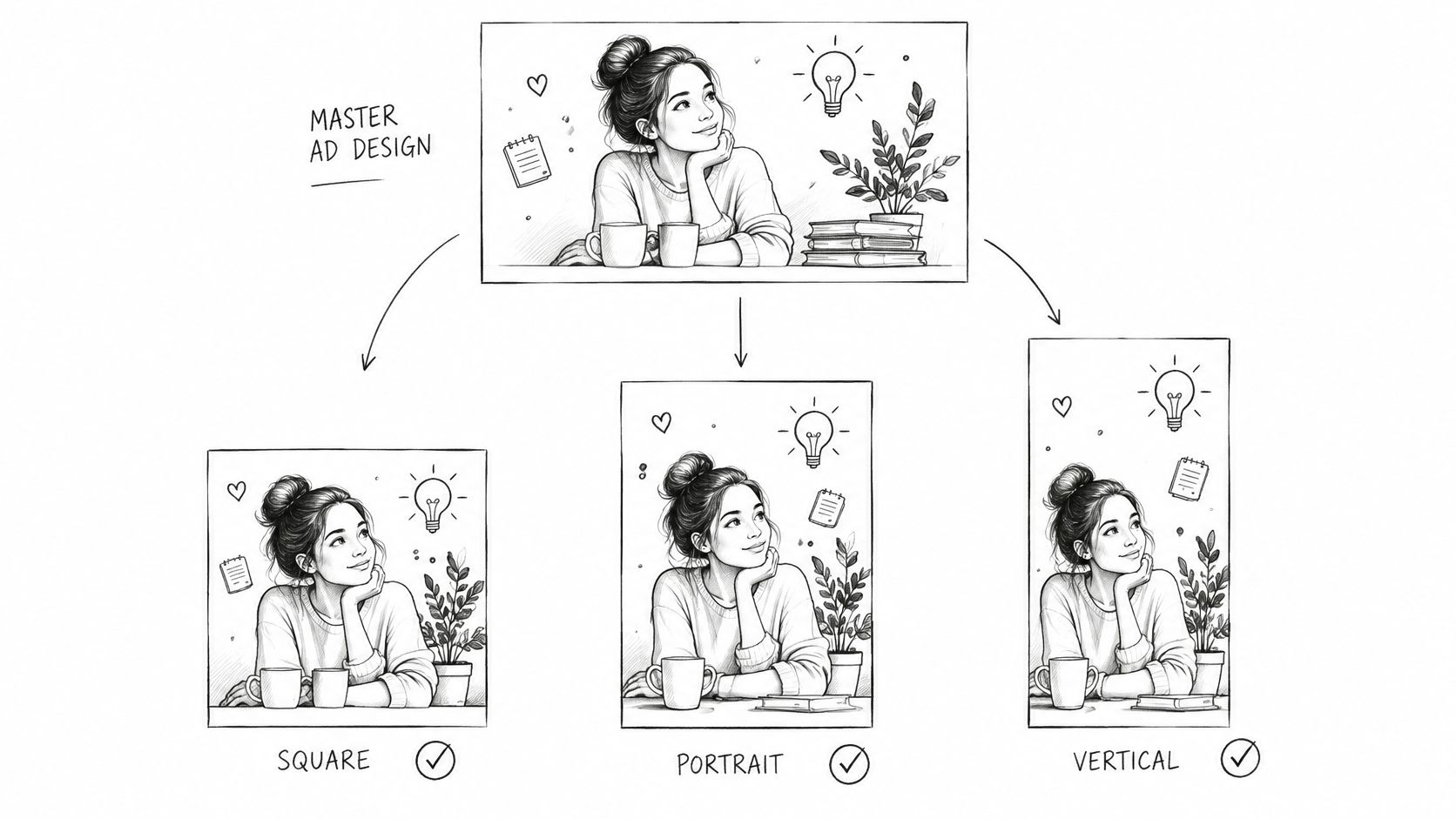
The fix is a small matrix, not a memory test. Build one master design with a protected content zone at its center. Logo, price, product claim, and call to action live inside that zone; background and texture bleed out to the edges. From that master you export three variants rather than cropping after the fact: 4:5 at 1440 × 1800 for Feed, 9:16 at 1440 × 2560 for Stories and Reels, and 1:1 at least 1080 × 1080 for square slots, the targets that DesignerBox’s Meta ad specs breakdown lays out.
From there, turn the checklist into a habit table:
| Habit | What it prevents |
|---|---|
| Name files by placement and ratio | The square export landing in a full-screen slot |
| Store safe-zone rules as asset metadata | A new designer guessing where UI overlays sit |
| Preview each variant at the ad level | A crop discovered after the campaign is live |
| Log which variant ran where | Performance debates with no audit trail |
None of this takes longer than a misplaced export costs. If your matrix includes motion, reviewing Facebook video ad examples for production reference keeps static and video safe zones consistent. And when you need to justify the production overhead to stakeholders, the social media ads guide for US brands puts creative operations inside a full paid social program.
Quick Fixes for Common Upload and Review Issues
An export can pass upload and still show the wrong crop in a placement preview. Check the rendered ad before changing the design.
If the preview crops or letterboxes the image, compare the file’s aspect ratio with the selected placement. Export to that placement’s template dimensions. A small canvas adjustment or automatic reframing can shift the crop without making the layout fit.
For Stories and Reels, check where the interface covers the image. If a headline or price sits behind controls, move it into the visible area. Reducing its size can make it harder to read without fixing the obstruction.
When an upload fails, check these in order:
- File too large: Export a JPG at a lower quality setting, or reduce the pixel dimensions to the placement template.
- Resolution warning: Confirm the file meets the placement’s minimum width and height. Upscaling a small image adds pixels, not detail.
- Crop appears after approval: Open the ad-level preview for each placement. A campaign-level check may not show how every variant renders.
Keep one approved export for each placement as a comparison file. When an upload behaves unexpectedly, compare its dimensions and preview with the known-good version before rebuilding the creative.
Facebook Ad Image Size Cheat Sheet
Pin this where your team works, in the creative brief or the project channel, not in a bookmark folder nobody opens.
Your default export set is three variants from one master. The tall vertical covers Feed, the square covers portable placements like Marketplace, and the full-screen vertical covers Stories and Reels. Add the legacy horizontal only when desktop link contexts are in the plan. Every variant gets composed, not cropped, with logos, prices, and calls to action inside the protected zone.
Your essentials are JPG or PNG files, exact template dimensions instead of near-enough ratios, widths and heights above Meta’s minimums, and file weight under the ceiling. Validate each variant at the ad level before launch, because that is where cropping shows up.
For a second reference while building templates, Bulk Image Generation’s Facebook ad specs lays out the per-placement dimensions in a format that’s easy to cross-check against your exports. The production rule underneath all of it stays simple. One master, three placement-aware variants, validated before spend.
If you’re managing creative variants like these across multiple Meta, TikTok, and Google Ads accounts, AdCrunch lets you build campaigns, adjust budgets, and pause underperformers through agents in Claude, ChatGPT, or Cursor, with every change recorded on a permanent activity log. Creations start paused and nothing is hard-deleted, so you can validate each ad before it spends. Visit AdCrunch to connect your accounts and run your next launch with a full audit trail.